Click this image to view a video of this topic:

Use the Batch Report Manager (BRM) to produce lots of reports at once.
If you want to do just one quick report for a customer on the Main Form, just click the Report in Report > Customers.
To start the BRM click Report > Customers > Batch Report Manager, Or Tools Menu > Batch Report Manager.
The Batch Report Manager works by walking you through three steps:
| 1. | Select the customers |
| 2. | Choose a report and Run it |
| 3. | Send the reports to your Printer, Email, or Save them as files |
Step 1. Select Customers
| • | Choose 'Surgeons by Name'. |
| • | Click Select. |
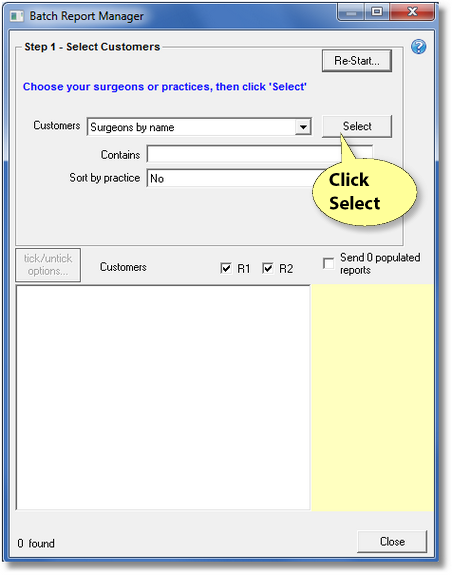
Leave the "Contains" box clear so this will allow us to run reports for all the surgeons.
Notice the Customers box box offers options to select Surgeons or Practices by Name, or by Tags.
Surgeons by Name |
To run reports for all Surgeons just leave the Contains box blank and click Select. For selecting a sub-set by name, enter the beginning of the surname in the Contains box. |
Practices by Name |
Same as above but for Practices. |
Surgeons by Tag |
Select groups of Surgeons you have already defined by assigning Tags to them by editing Customer details. |
Practices by Tag |
Select groups of Practices you have already defined by assigning Tags to them in editing Deliver To details. |
You will have been automatically moved on to Step 2.
Step 2. Run Report
| • | Choose a Report |
| • | Click Run Report |
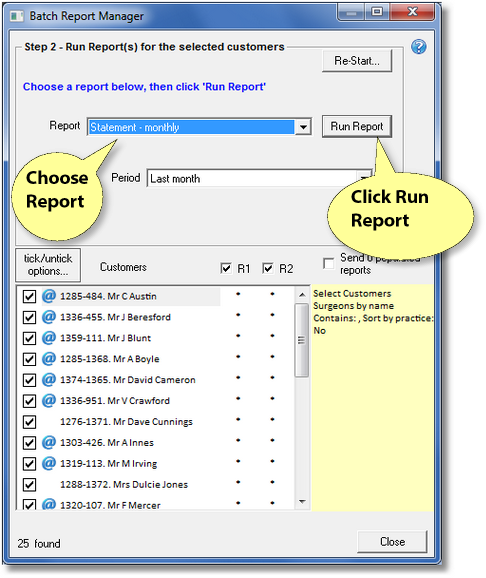
You'll notice Transactor Lab Manager works through your list of customers, skipping those that aren't ticked.
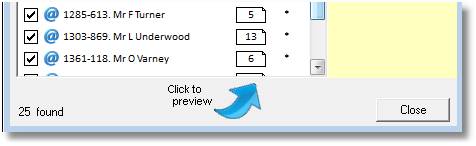
Reports which have more than 1 row of information will appear as 'instant preview icons' to the right of the customer name under the Report Run 1 column
Once the whole list has been processed, you can click any of those "instant preview icons" to quickly view the reports.
Step 3. SEND Reports
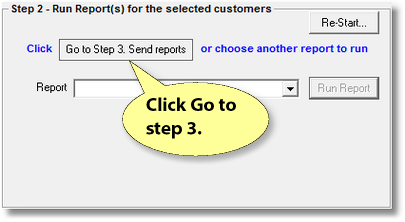
| • | Click Go to Step 3 |
Tick/Untick customers you want to exclude from the Run
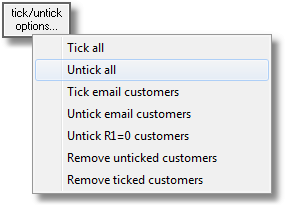
The Tick/Untick options help you to manage your report runs so that you can do several 'send to printer/email' to cater for customers who want their documents emailed to them for example, and those that want a printed copy.
One regular thing you may use, is to untick all, then tick just Email Customers. Then in Step 3 you can Email this Report to Customers who have an Email Address in their Customer Details window. Indicated by the ( @ ). You may have already twigged that you can then do the reverse, (Tick All - Untick email customers) and physically Print your reports for those Customers still preferring hard copy.
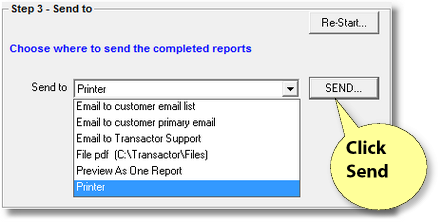
| • | Choose which output medium you want the reports to be sent to. |
| • | Click Send |
Step 4.
Only joking ! There's no step 4, your work is done. In less than 30 minutes you could have produced 100s of reports, and distributed them to your customers, some by post, some by email, and emailed the Summary Totals Report to your accountant.
That's it. But here's some more reading..
More on Send to Channels
Printer |
Your printer. You may have several choices of printer. See Send To's in the Control Centre. |
Email to Customer primary email |
Send an Email directly to the Customer's email address. You should have previously used the Ticking helper described in Step 2 to tick only customers with Email addresses. Also, you should have entered your email account details into the Transactor Emailer |
Email to Customer email list |
Send an email to all recipients in the Customer's "email list", as shown on the customer's details screen. |
Email to (3rd party) |
eg. Head office, Your own lab email, Transactor Support (if these have been set up) |
File (PDF) |
Save the reports to a folder. One Customer per PDF. |
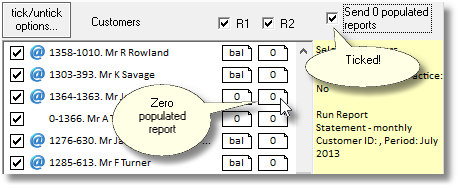
Send 0 populated reports
Tick this to include "no activity" reports in your distribution. These zero populated reports are those that have no significant rows - for example, customers who had no activity for the period. By default, Transactor Lab Manager assumes you wouldn't want to print or send these reports.
Balance only reports
 When the 'Instant preview icon' is just 'Bal' then the report is a Statement with just a balance brought forward (b/f) and a balance carried forward (c/f) meaning there's still money owing - so you probably still want to print it. If not, just untick the customer.
You may want to do an extra "Preview As One Report", and then from that preview window you can email the whole report (which is a collection of the reports for all the listed customers), to a 3rd party Email Address - by clicking the email icon on the toolbar of the preview window.