Click this image to view a video of this topic:

Transactor Lab Manager gives you a number of ways to locate a job, so we're going to try some of these now.
We can find a job using any of the main job details .
The main job details include Job no, Invoice no, Customer name, Customer ID, Patient name\ref, or job status.
Search for a Job using the Job no
| • | Clear the Screen and click the "Job #" box |
| • | Type a known Job number then press the Return. |
The job appears on the screen and we can start working with it.
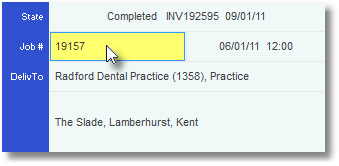
You can use the same method for searching by Invoice ref, Customer Name and Customer Number, by moving the Prompt to the corresponding box and typing. Give these a go now. If you get stuck just clear the form.
Search for a Job using the Invoice Ref
This uses the same box as the Job#
| • | Clear the Screen and click the "Job #" box |
| • | Type a known Invoice reference eg. INV192595 then press Return. |
If the job with this Invoice Ref exists it appears on the Main Form and we could print an Invoice Copy, or Void the Invoice and edit or delete the job. See Edit or Delete a Job
If the job with this Invoice Reference doesn't exist you'll be prompted to search again.
Search for a Job by Patient Search
| • | Click on the Patient Search button on the Tool Bar, or select Patient Search from the Tools menu. |
|
|
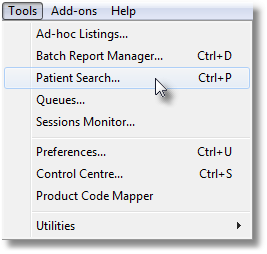
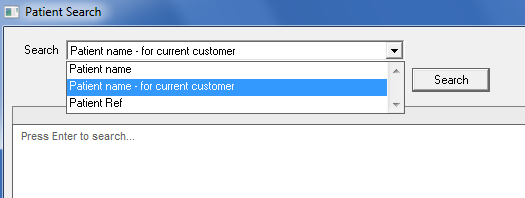
You'll notice at the top of the Patient Search window you're informed that you're searching by "Patient name". In the "Contains" box you can enter some or all of the patient name - just
| • | Type in part of the surname if you like, then click Search |
You'll be presented with a list of all patients in the database with that surname (there may be quite a few! Patient's names aren't often unique). Right click on any job and choose View to see a preview of that job. Using the Space Bar is quicker.
If you think you've found the correct job, click it and choose Select.
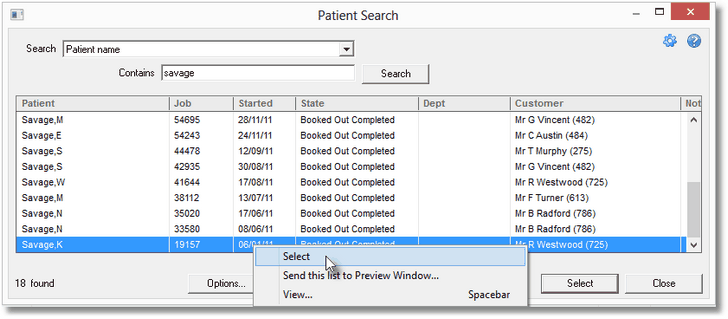
You can narrow down the search for the current customer on the Main Form.
Search using the Jobs Selection List
Click this image to view a video of this topic:
| • | Click Jobs List on the Tool Bar, or choose "Select..." from the Jobs menu on the Menu Bar. |
| • | Choose "Jobs by Reference", enter "demo" in the Contains box and click Search. |
Give this a try now - the screen shot below should help you.
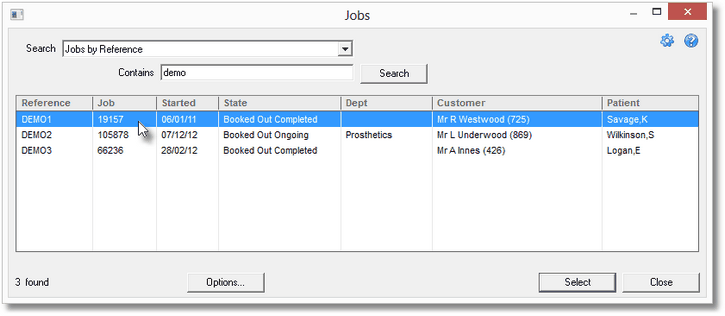
As well as allowing you to search by reference or patient name, the Jobs Selection List will also let you search for all jobs in a particular state. Don't worry about all the available job states for now.
Search for a Customer by Name
Click this image to view a video of this topic:
So what if you just want to check a particular Customer's details, or look through their job history?
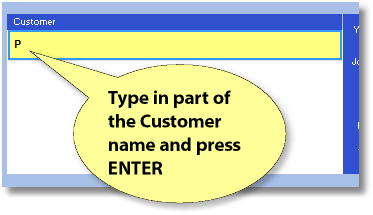
Clear the Main Form then type in the first part of a customer name and press ENTER.
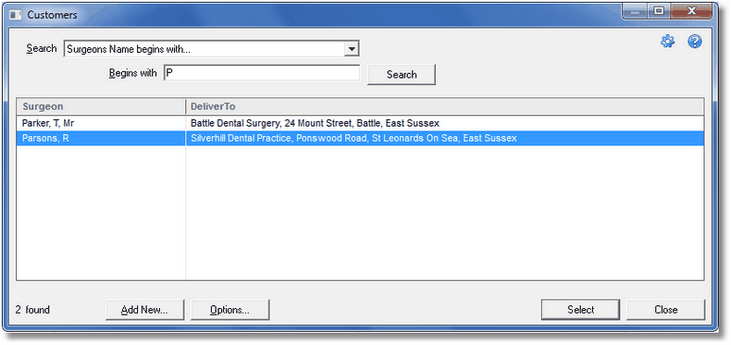
The Customer search window will show you who fits the bill.
Select a customer or type in another search.
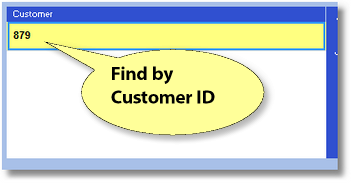
Search by Customer ID
If we know the customer id, it's a real quick way to retrieve a Customer.
Clear the Main Form then type in a customer ID into the Customer Box and press ENTER.
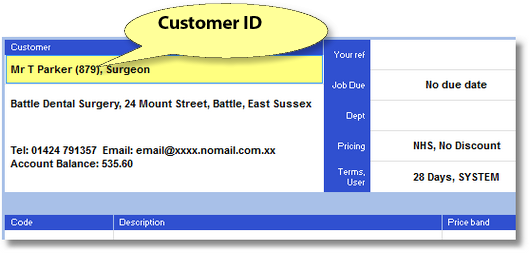
Notice that Transactor Lab Manager displays the Customer ID in brackets after the Customer name.
The Customer ID is also in the Caption bar of the Customer Details window.
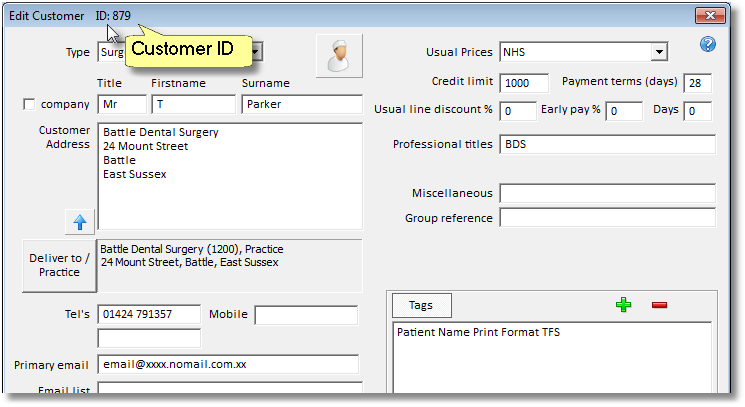
At any time you have a customer showing on the Main Form you can see the Customer Details. Choose Customer/Edit from the menu or double click the customer address area.
