We'll start by taking a look at Transactor Lab Manager's Main Form and try a few common things.
Introducing the Main Form
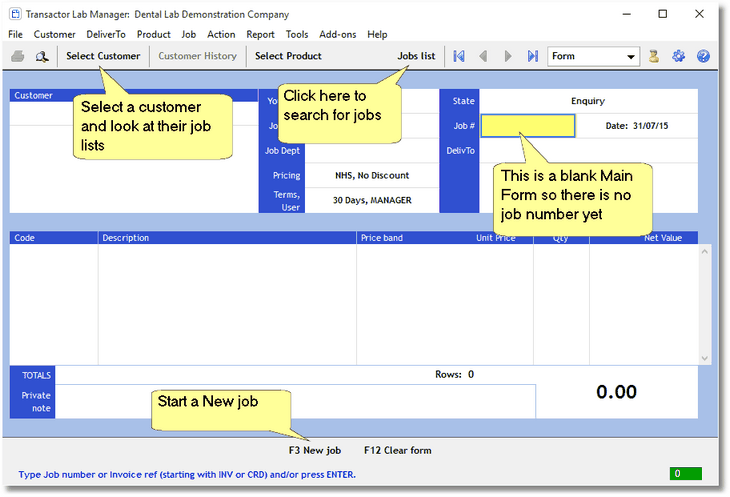
The Main Form above is blank at the moment so we'll put it to use.
Select a Customer
Click this image to view a video of this topic:

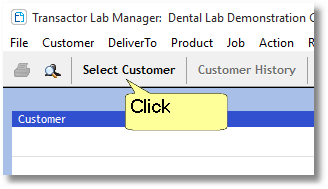
Select a Customer from the Tool Bar just for fun.
The Select Customer window will let you find existing Customers, or Add a New customer.
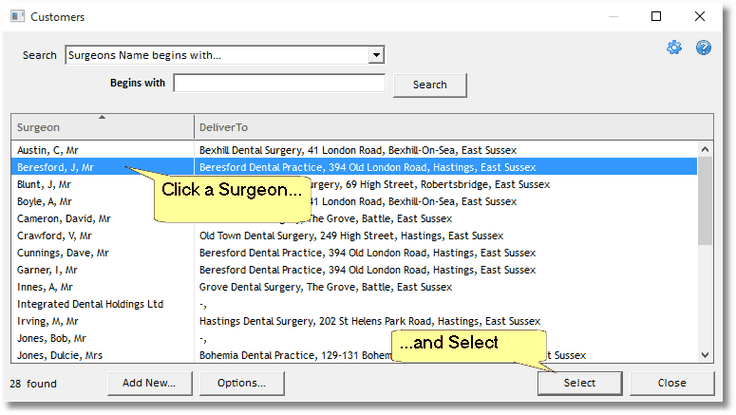
Notice that the second column (above) displays the Delivery Address which is usually the Practice. Out of interest, if we had searched for 'All Customers',with results containing Direct Patients, or other Dental Laboratories. In that case the list's columns would show the customer name, invoice address and delivery address.
The selected customer's details will appear on the Main Form now..
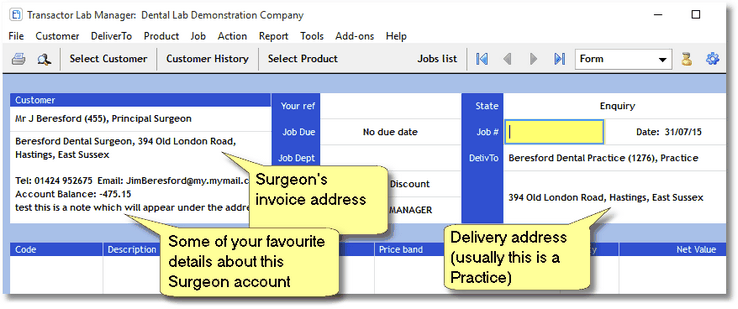
Customer History
Click this image to view a video of this topic:
We will move onto actually creating a Job for this customer in the next topic but for the moment we'll simply select an existing Job from this Customer's History list..
Click the Customer History button on the tool bar (next to the Select Customer button)..
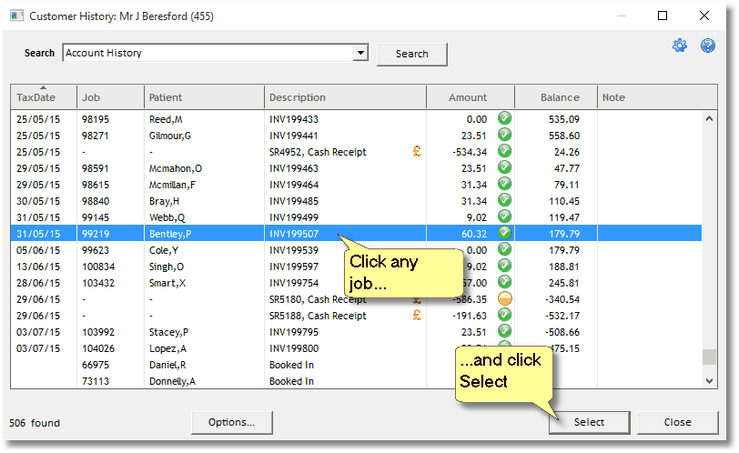
The job details you select will appear on the Main Form..
Job Selected onto the Main Form
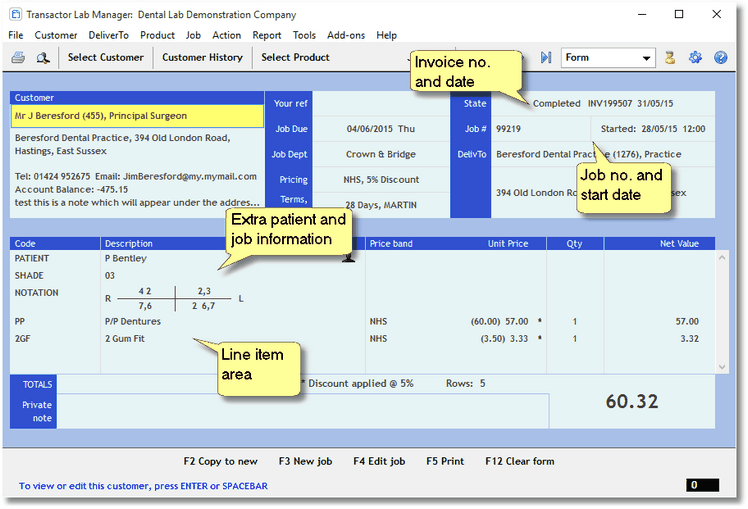
If the job you selected onto the Main Form is not a Completed Job, Booked IN, or Booked Out On-Going for example, then the Invoice No and Date will not be visible of course.
Job Status
You can always tell the current Status of a Job by looking at the State Box..
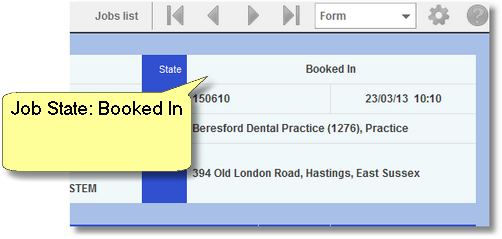
Navigate to the Next or Previous Job
Click this image to view a video of this topic:
The Arrow buttons on the Tool Bar allow you to move through the jobs on the system, in order of their Job Number.
Try moving around between jobs now. You will notice the white areas of the Main Form change to be shaded blue when you're viewing the jobs that are already in the database. This means the details can't be accidentally modified in the current state - more on modifying or deleting jobs later.
Sometimes Transactor Lab Manager won't let you move to another job using this form. This may be because the current job is being edited and something needs to be done with it first (eg. Action - Bookout, or Action - Book In). Out of interest, there are ways to have several Main Forms on the go at the same time, see the User Guide.
The Prompt/Focus
Click this image to view a video of this topic:
| • | The Prompt/Focus is the yellow shading used to highlight the piece of information you're currently working with. This can be moved around with the Tab key or with a Touch/Click. |

Job Items
This area forms most of the bottom half of the Main Form and lists the job's items. These items are added to the job by the user and can be modified at any time prior to the job being booked out and invoiced.
Transactor Lab Manager can also be configured to add default items to new jobs to save you having the enter these every time a new job is started, see the User Guide.
In the Job items area several types of Job items can be entered.
| • | Special template notes (for example: Patient details, Shade, Notation) |
| • | Products and Services |
| • | Images |
| • | Notes |
Action Bar
This area shows which actions are available to you, along with the hot key you can press on your keyboard to do that action. These can also be Clicked.

The actions available change depend on what you are doing at the time. For example if you are entering job details you will be able to book it in, delete it etc. If you are viewing an existing job that has been booked out and invoiced you will have different actions available. This behavior is described as "context sensitivity".
Help
At the bottom of the Action Bar you will often see a helpful prompt, this changes depending on what you're doing at the time so if you're wondering what to do next, check what it says here!

If you're stuck
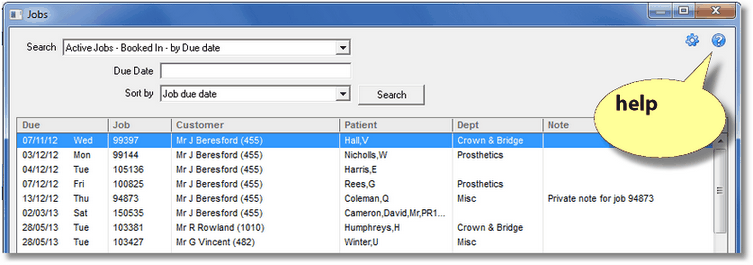
Most of the screens that you'll see within Transactor Lab Manager will have a question mark icon at the top right. Clicking on this will show help for the screen you're currently looking at.