All by Start Date Range
Lists all jobs (regardless of state: ie. booked in, out, on hold) that were STARTED on a date within the specified date range. The started date is defined as the date the job was entered into the database.
From the menu bar, choose Report > Jobs > All by start date range
Parameters
Customer |
Either choose to run the report for the "Current customer on the main form" or "All Customers" |
From Date |
The earliest started date of jobs to include on this report. |
To Date |
The latest started date of jobs to include on the report. |
Example
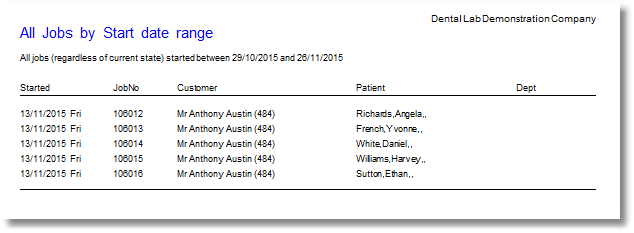
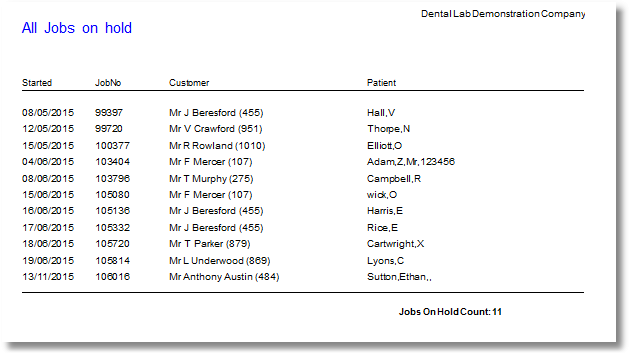
Lists all jobs in an On-Hold state, for all customers.
From the menu bar, choose Report > Jobs > All on hold
Parameters
None
Example
Booked In
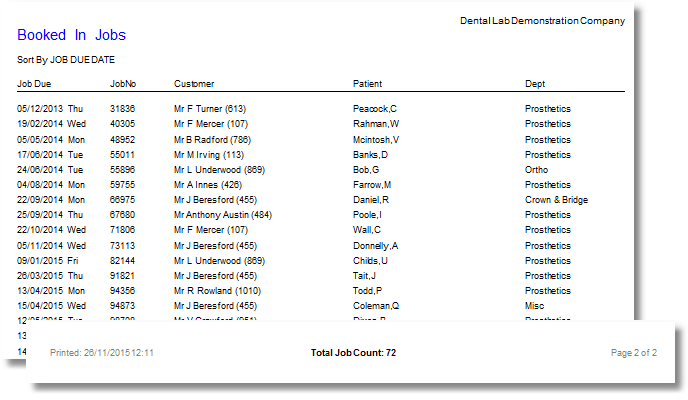
Job Schedule of work in progress. If the Job Due Date (optional) is left blank, the report will list all booked in jobs regardless of Job Due Date.
From the menu bar, choose Report > Jobs > Booked In
Parameters
Job Due Date (optional) |
If a due date is specified, the report only lists Booked In Jobs that are due on that date. If this box is left blank, ALL booked in jobs will be listed. |
Sort By |
The order in which to display the list of jobs: by Job Due Date or Department |
Dept |
Select "ALL DEPARTMENTS" or choose to only list booked in jobs from a particular department. |
Example
Booked In + Box
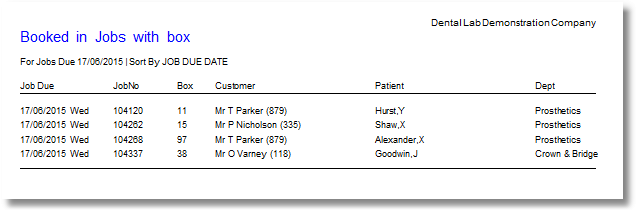
Job Schedule of work in progress (as per the Book In jobs report), showing the BOX note item if it is present on the job. The BOX note item can be used on a job to identify a physical container that the job is stored in within the lab.
If the Job Due Date (optional) is left blank, the report will list all booked in jobs regardless of Job Due Date.
Note, you can add the BOX note product onto your jobs by entering the product code BOX and pressing Return when you are adding line items to a job.
From the menu bar, choose Report > Jobs > Booked In + box
Parameters
Job Due Date (optional) |
If a due date is specified, the report only lists Booked In Jobs that are due on that date. If this box is left blank, ALL booked in jobs will be listed. |
Sort By |
The order in which to display the list of jobs: by Job Due Date or Department |
Dept |
Select "ALL DEPARTMENTS" or choose to only list booked in jobs from a particular department. |
Example
Booked In Detailed
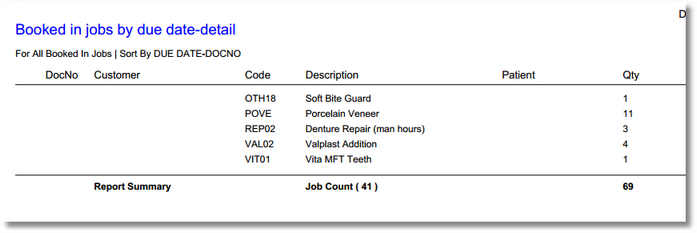
Job Schedule of work in progress. If 'All booked in jobs' is selected, the report will list all booked in jobs, grouped by Due date. Each new due date will start on another page. If you need net values see the other report 'Booked in Detailed + Net'.
From the menu bar, choose Reports > Jobs > Booked in Detailed
Parameters
Due Date (optional) |
If a due date is specified, the report only lists Booked In Jobs that are due on that date. For all jobs, choose "all booked in jobs" |
Sort Order |
The order in which to display the list of jobs: by Job Due Date then Customer, or Job Due Date then Document Number |
Example
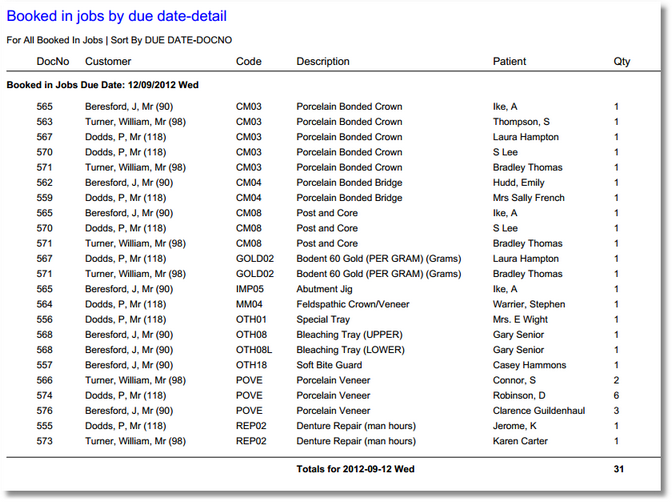
The last page contains the summary.
Booked In Detailed + Box
Job Schedule of work in progress showing the BOX note item if it is present on the job. If 'All booked in jobs' is selected, the report will list all booked in jobs, grouped by Due date. Each new due date will start on another page.
The BOX note item can be used on a job to identify a physical container that the job is stored in within the lab.
If the Job Due Date (optional) is left blank, the report will list all booked in jobs regardless of Job Due Date.
Note, you can add the BOX note product onto your jobs by entering the product code BOX and pressing Return when you are adding line items to a job.
From the menu bar, choose Reports > Jobs > Booked in Detailed + Box
Parameters
Due Date (optional) |
If a due date is specified, the report only lists Booked In Jobs that are due on that date. For all jobs, choose "all booked in jobs" |
Sort Order |
The order in which to display the list of jobs: by Job Due Date then Customer, or Job Due Date then Document Number |
Booked In Detailed + Net
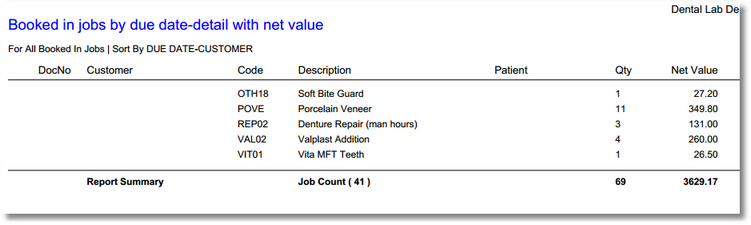
Almost the same as Booked in Detailed, but with an extra Net value column and associated sub-totals and grand totals for each due date.
From the menu bar, choose Reports > Jobs > Booked In Detailed + Net
Parameters
Due Date (optional) |
If a due date is specified, the report only lists Booked In Jobs that are due on that date. For all jobs, choose "all booked in jobs" |
Sort Order |
The order in which to display the list of jobs: by Job Due Date then Customer, or Job Due Date then Document Number |
Here's the last page of the report, containing the report summary.
Booked In with work stage
Lists all booked in jobs with one page per stage due date. Each stage's due date is configured by entering a due date on a line item (ie. a product).
From the menu bar, choose Reports > Jobs > Booked in with Work Stage
Parameters
Due Date (optional) |
If a due date is specified, the report only lists Booked In Jobs that are due on that date. For all jobs, choose "all booked in jobs" |
Department |
Choose a department or select "ALL DEPARTMENTS" |
Booked In by start date
Lists jobs and their contents for those jobs with a start date on the date specified.
From the menu bar, choose Reports > Jobs > Booked in by Start Date
Parameters
Start Date |
List jobs with this start date |
Start Date As |
Specify if the start date is the date the job was first created (original start date) or the date it was last booked in (ie. a multi-stage job may have been booked out ongoing and then booked in again a number of times) |
Booked In by start date range
Lists jobs and their contents for those jobs with a start date within the date range specified. This report also allows the user to specify a single customer to report on, or return results for all customers.
From the menu bar, choose Reports > Jobs > Booked In by Start Date Range
Parameters
Customer |
Choose "All Customers", or the current customer showing on the main form, or specify an account ID |
Date From |
Show jobs with a start date as early as this date |
Date To |
Show jobs with a start date up to this date |
Start Date As |
Specify if the start date is the date the job was first created (original start date) or the date it was last booked in (ie. a multi-stage job may have been booked out ongoing and then booked in again a number of times) |
Work Schedule by due date and tech-team
Job Schedule of work in progress. If 'All booked in jobs' is selected, the report will list all booked in jobs, grouped by Due date. Each new due date will start on another page.
This report also shows the technician (or team) that has been assigned to work on each item.
From the menu bar, choose Reports > Jobs > Work Schedule by due date and tech-team
Parameters
Due Date (optional) |
If a due date is specified, the report only lists Booked In Jobs that are due on that date. For all jobs, choose "all booked in jobs" |
Department |
Choose a department or select "ALL DEPARTMENTS" |
Booked In Items by Due Date
List all items on jobs due with the specified date.
From the menu bar, choose Reports > Jobs > Booked In Items by Due Date
Parameters
Due Date |
Specify a date. All items due on this date will be shown on the report. |
Booked in Items Summary
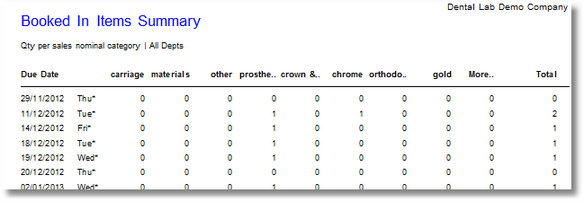
Summarise the number of items of each department type, on jobs that are currently booked in, and list these in order of due date.
From the menu bar, choose Reports > Jobs > Booked In Items Summary
Parameters
Department |
Choose a department or select "ALL DEPARTMENTS" |
All jobs that are in Job State 'Booked out ongoing' will be listed. These are jobs which have been temporarily booked out but not completed or invoiced
From the menu bar, choose Reports > Jobs > Booked Out Ongoing
Parameters
Customer |
Choose "All customers", the current customer displayed on the main form, or enter an account ID |
Jobs older than (days) |
Show jobs that have been booked out ongoing for longer than this number of days. Enter a 0 in this box to specify all jobs. |
Sort By |
Show the results in order of the date the jobs were booked out, or in order of their due date. |
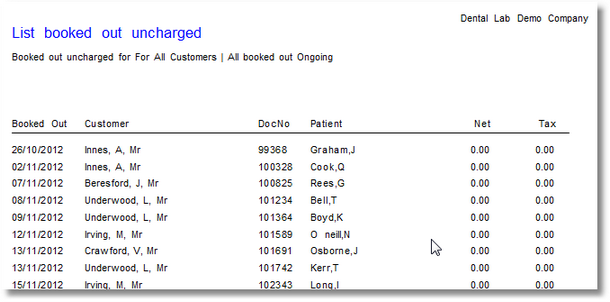
Booked Out completed/invoiced
List all invoices (ie. completed jobs) with a tax date within the date range that the user specifies.
Tax date, customer ID, name, patient, invoice reference, order number and value are shown, with totals at the end of the report.
From the menu bar, choose Reports > Jobs > Booked Out completed/invoiced
Parameters
First date |
Show completed jobs with a tax date no earlier than this date |
Last date |
Show completed jobs with a tax date up to this date |
Customer ID (optional) |
Either leave blank to report on invoices for all customers, or enter the account ID of a single customer that you wish to report on |
Completed jobs for customers with tag
An item-level list of all invoices (ie. completed jobs) with a tax date within the date range that the user specifies, for customers with the selected customer tag.
Tax date, invoice reference, order number, customer, patient, items and value are shown.
From the menu bar, choose Reports > Jobs > Completed jobs for customers with tag
Parameters
Customer tag |
Select a customer tag from the list of available tags. Only customers that have been tagged with this tag will show in the report |
First date |
Show completed jobs with a tax date no earlier than this date |
Last date |
Show completed jobs with a tax date up to this date |
Delivery Notes in Print Queue (detailed)
Lists all delivery notes that have been sent to the print queue. The user can choose to either view those that are still as yet unprinted, or they can view the last batch that was printed.
This is the detailed version, which lists the items on the jobs, in addition to the customer and patient details, and the job number.
From the menu bar, choose Reports > Jobs > Delivery Notes in Print Queue (detailed)
Parameters
Choose to view "All unprinted delivery notes" or the "Last printed batch" |
|
Hide codes |
Specify which product codes to exclude from the results. By default, NOTATION and SHADE will be excluded. You can specify codes to exclude by separating them with a comma. |
Delivery Notes in Print Queue (simple)
Lists all delivery notes that have been sent to the print queue. The user can choose to either view those that are still as yet unprinted, or they can view the last batch that was printed.
From the menu bar, choose Reports > Jobs > Delivery Notes in Print Queue (simple)
Parameters
Choose to view "All unprinted delivery notes" or the "Last printed batch" |
Delivery Notes by due date
Builds a list of delivery notes for completed jobs with the parameters specified.
From the menu bar, choose Reports > Jobs > Delivery Notes by due date
Parameters
Delivery address |
Either choose all, the current DeliverTo on the main form, or enter the account ID of the delivery address |
Job Due Date |
The date the jobs are due out on |
Delivery address has tag |
Choose a customer tag, or leave blank. Only delivery address will be used from accounts that have been tagged with the selected tag |